Switching Restaurant Systems Without Losing Your Guests
Ask a restaurant why it is still on a system it dislikes and the answer is rarely the menu or the price. It is the guest list: years of names, numbers, birthdays and preferences that nobody wants to lose. Moving it across is easier than most people expect, provided you treat consent with care.
Step 1: Export what you have
Most systems export guests as a spreadsheet (CSV). Get every column you can: name, phone, email, visits, spend, birthday, notes, and above all, whether each guest agreed to marketing.
Step 2: Clean it before you import it
- Remove obvious duplicates and test entries
- Put phone numbers in one format, with the country code
- Separate allergy notes from general notes, so they land in the right place
- Check the consent column: a blank is not a yes
Step 3: Import with consent mapped
In the Owner Portal's Import tab, upload the file and map each column to a WowMenu field. Map marketing consent explicitly. Guests who did not agree should arrive as not consented, and they will not receive marketing messages until they opt in themselves.
Step 4: Check before you go live
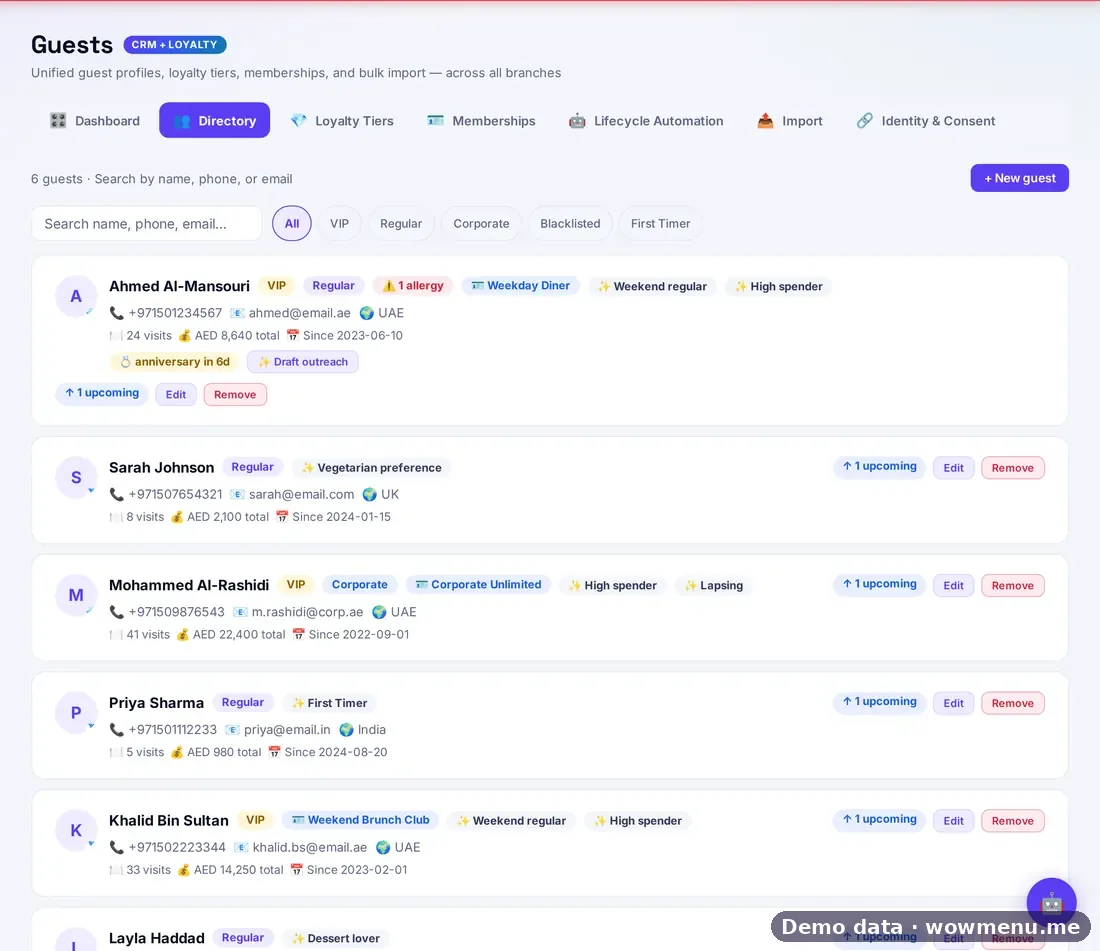
Open a few profiles after the import: a regular, a VIP, a guest with an allergy. Check that visits, tags and allergies arrived where you expect.
Step 5: Invite guests to sign in
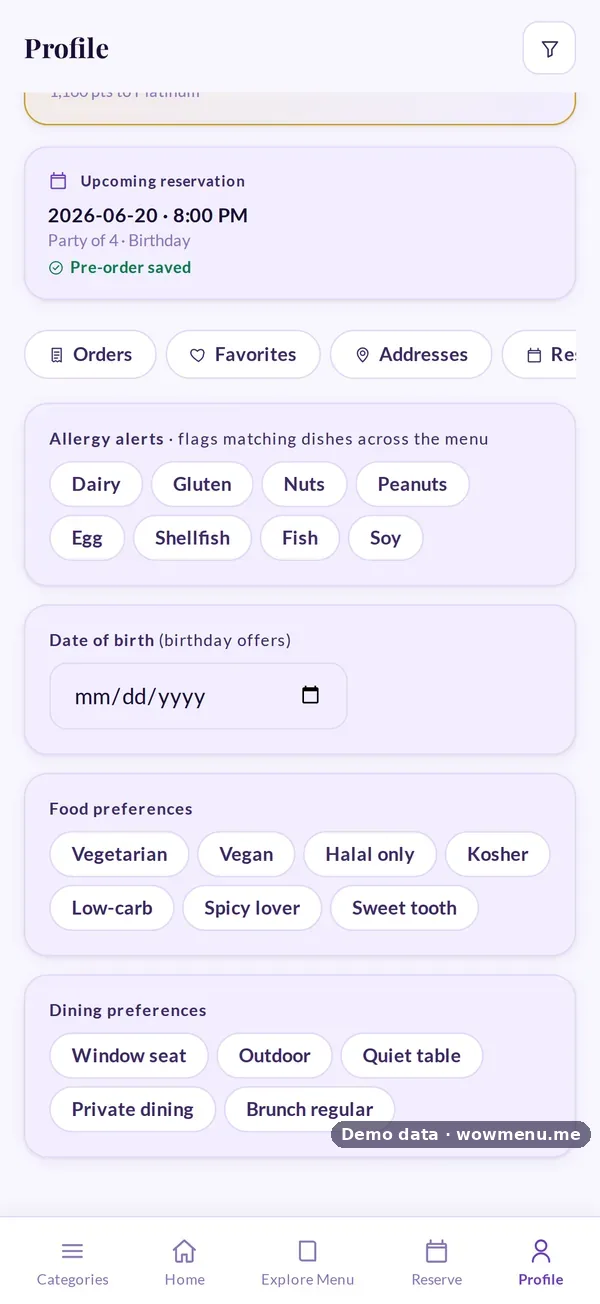
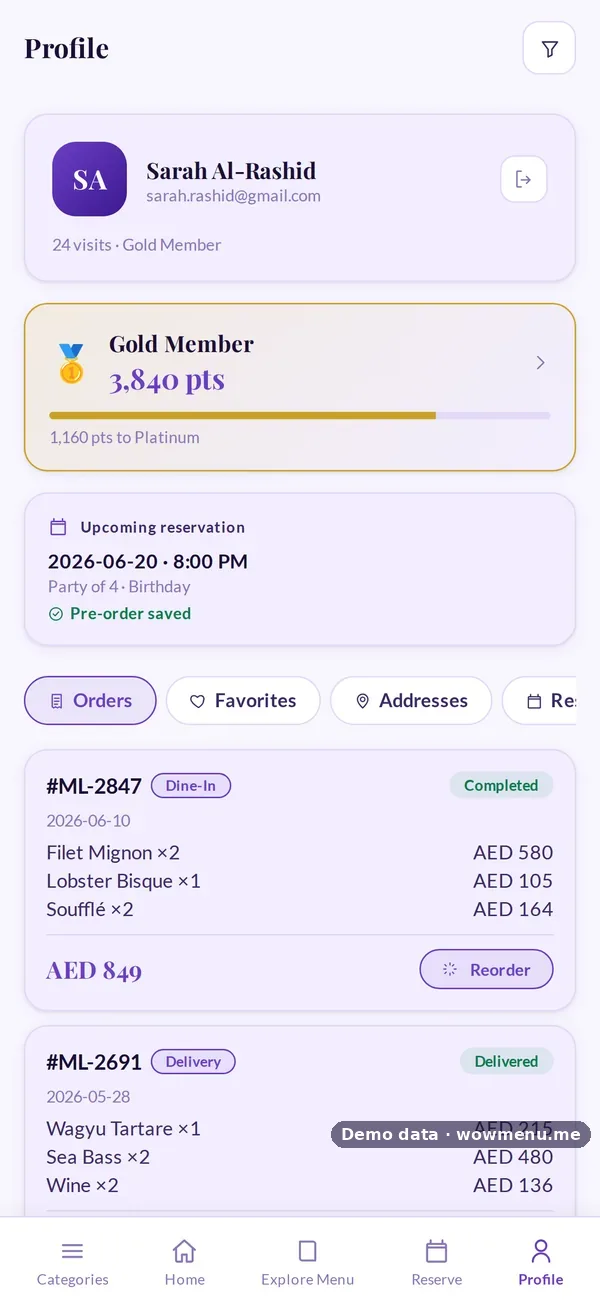
Imported records become richer when guests sign in to the QR menu. From then on, their preferences, orders and points build up on one profile across your branches.
Running both systems for a while
You do not have to switch everything on one day. WowMenu sits alongside your POS rather than replacing it, so orders keep flowing into the till you know while you move guests, loyalty and campaigns across at your own pace.
Before you start, ask
- Which fields can my current system export?
- Where is marketing consent recorded?
- Who will check the import?
- When will we invite guests to sign in?
See the guest CRM and POS integration.